Your work may be waiting for you when you come back
You ask Lumo on your Mac to help shape a video script: gather the reference material, then suggest a few opening angles. Halfway through, you leave for a meeting while the task keeps running. The Agent may need permission to read another file, or it may have two directions ready for you to choose from. Meanwhile, your iPhone screen has gone dark.
That pause is ordinary. Creative work happens in stretches: you set a task in motion at your desk, check on it while you're out, and make the next call later. When you pick up your phone again, you need to find the decision that is holding things up, not sift through a long conversation to guess where the task stopped.
Lumo iOS 1.2 and Mac 0.5.0 focus on that return. Approvals and questions that arrive while you're away from the mobile app are shown again when you reopen the session. You still decide whether a file can be read and which script direction to take. The update helps those decisions stay visible through a screen change or a dropped connection.
Start with the decision that's waiting
When you return, check three things: is the task still running, is anything waiting for your answer, and which workspace are you connected to? Open the session and read the Agent's request in context before approving it, declining it, or adding an instruction. If the reason for a permission request is unclear, look back at the task before you respond.
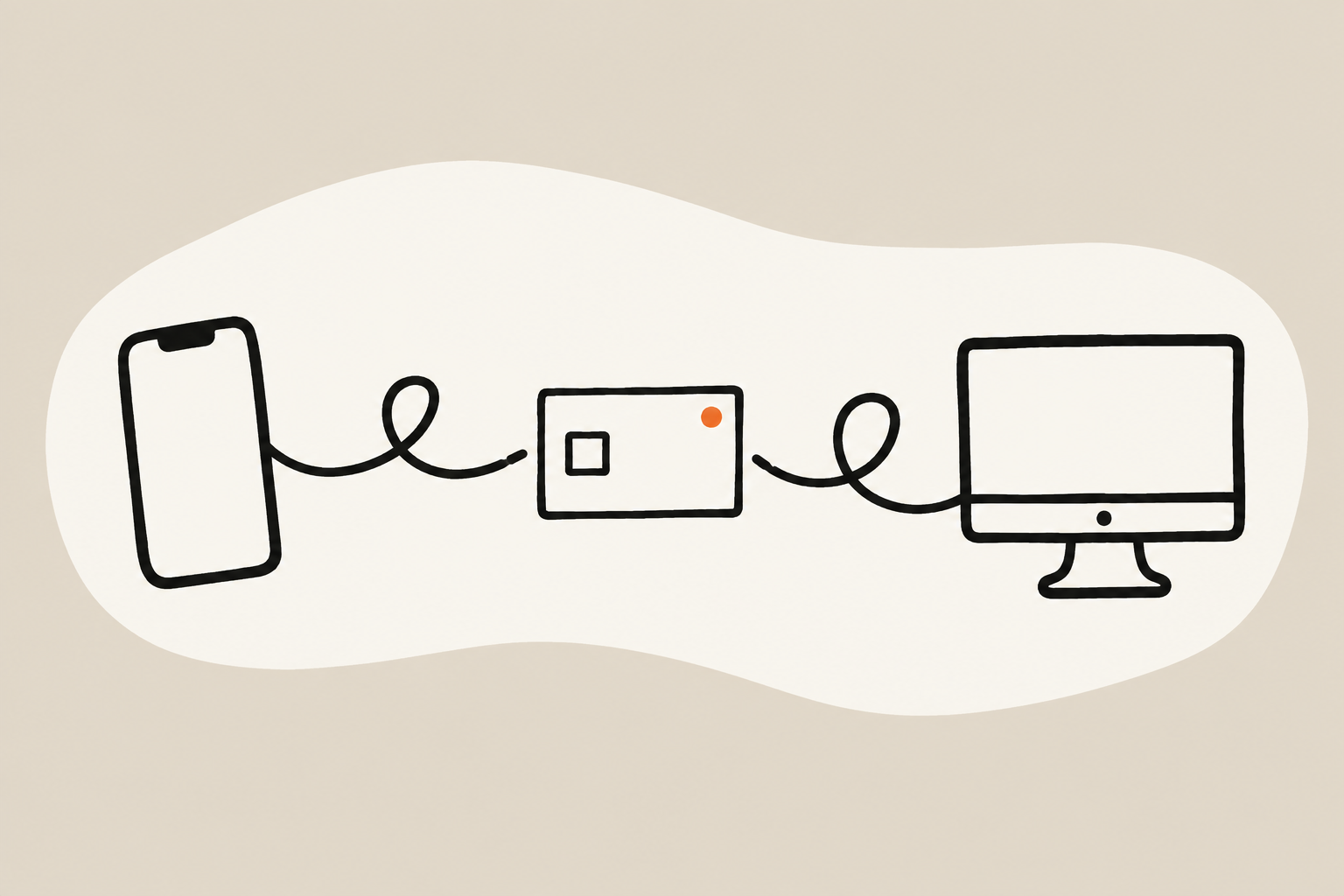
For a Mac workspace, your Mac still runs the task. The iPhone and iPad give you a convenient way to follow progress and respond. Mac 0.5.0 improves state recovery after reconnection, alongside iOS 1.2's approval fixes. A brief trip out of the app or a network interruption is less likely to leave a pending action out of sight.
Remote access still needs a Mac that is awake and online, with remote access available. If it goes to sleep or loses its connection, you must restore that connection first. This release improves what you see after you reconnect; it cannot remove the device and network requirements.
Permission mode belongs to the current task
An approval applies to one request. Permission mode affects how the task asks to perform later actions. If your phone is still showing the mode from an earlier task, it's harder to judge what you're agreeing to. A delayed response from that earlier task could also arrive after you've moved on and overwrite the new task's state.
Mac 0.5.0 keeps the mobile view aligned with the permission mode of the current Mac task and prevents a late response from an old task from changing it. Say you organize research in the morning, then open a separate session to edit a page in the afternoon. Even if a morning response arrives late, it will not change the permission mode for the afternoon's work.
The decision to grant access remains yours. Before approving a request involving an unpublished draft, client material, or a local file, check the task and the scope of access. A more accurate status display is useful precisely because it lets you make that choice with better information.
Three connections, three clear boundaries
Before continuing on mobile, check where the task runs:
- •Local Mac connects to your Mac when both devices can reach each other on the same local network.
- •Remote Mac connects when you're away and your Mac remains online with remote access available.
- •Cloud Agent runs in a separate cloud workspace and does not require your Mac to stay on.
Local Mac and Remote Mac both lead to the workspace on that Mac, including its sessions and files Lumo can access. Cloud Agent has its own workspace. Signing in with the same account does not merge its files or sessions with your Mac's. Connect to the Mac when a task needs source material there; choose Cloud Agent for work that can start independently. Knowing where the task runs makes it much easier to know where its material belongs.
More changes across Mac and mobile
Mac 0.5.0 updates components bundled with the app to address known dependency issues and fixes a packaging problem that affected startup. These aren't flashy changes, but they matter when you're trying to open the app and get to work.
iOS 1.2 also adds the ability to create and edit schedules on iPhone and iPad. Saved outputs such as scripts, copy, and images have a clearer preview, with image comparison for visual work. The interface now supports Japanese, Korean, Spanish, and Brazilian Portuguese as well. For a practical example of schedules and saved outputs working together, read our guide to handling a changed publishing date.
Try it with a small task
Start with something that isn't urgent. Launch a task in your Mac workspace and connect your phone to the same Mac. Leave the session for a while, then come back and check the progress, pending questions, and permission mode. A few short runs will make the boundaries between workspaces familiar before you rely on them for a larger project.
Mac 0.5.0 is available on the download page. The timing of iOS 1.2 availability depends on your local App Store; the full changes are in the changelog. If you're new to Lumo on mobile, start with Lumo on iPhone and iPad and choose the connection that fits your work.